What is Use of Advanced Work Flow Screen?
Work Flow screen helps user to Create, Configure and Run the Built-in and Custom Tasks. After adding any task in workflow, we need to add permission in User Authorization --> WorkFlow tab.
How to give permission for WorkFlow task
- Go to Menu bar -->File --> User Authorization --> WorkFlow tab.
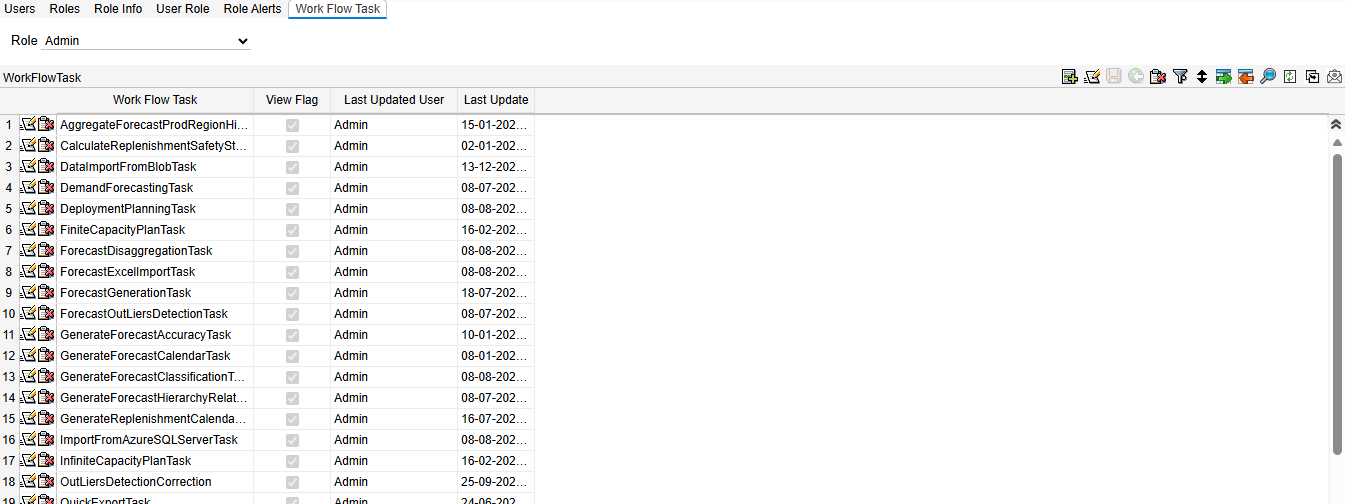
Click on Add button, add popup will appear.
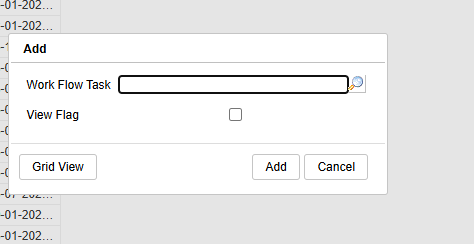
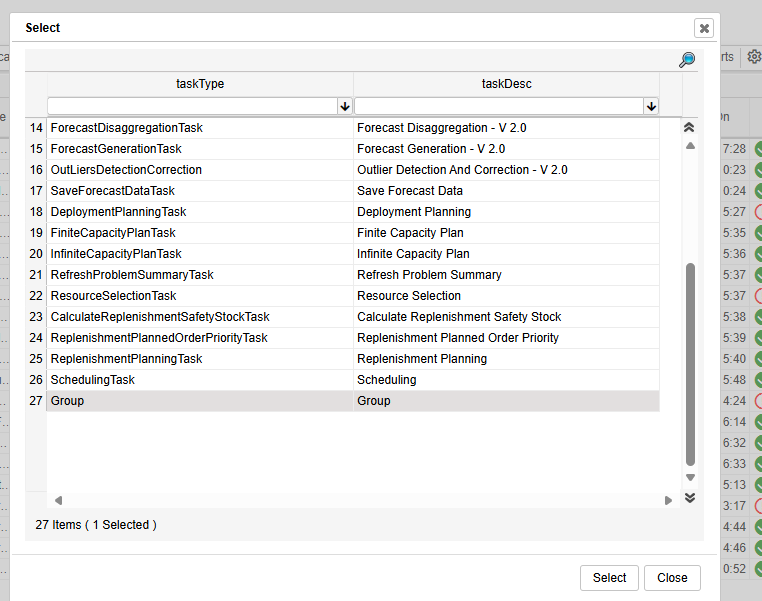
Click on Search Icon, WorkFlow Task Select window will appear.
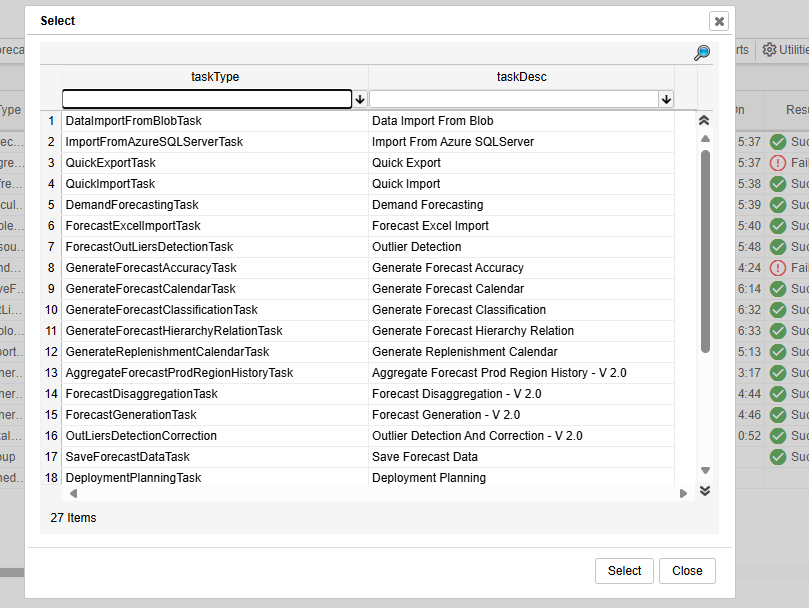
Select the required task and click on Select button.
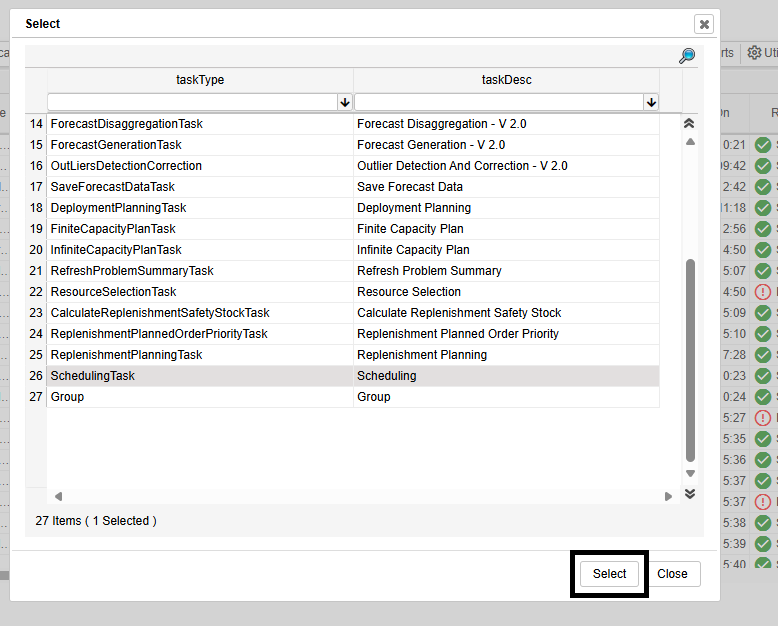
Select the required task and click on Add.
Selected Task will be added after giving permission in workflow task tab.
The SQL Server Execute SQL and SQL Server Execute Procedure tasks are the Custom tasks
The SQL Server Execute SQL task is used to run custom queries, and the SQL Server Execute Procedure task is used to execute custom procedures.
How to Add Tasks in Work Flow?
Go to the Menu bar → File → Workflow. The Empty Advanced Workflow screen will be displayed, where the user can add Workflow tasks from the selection window.
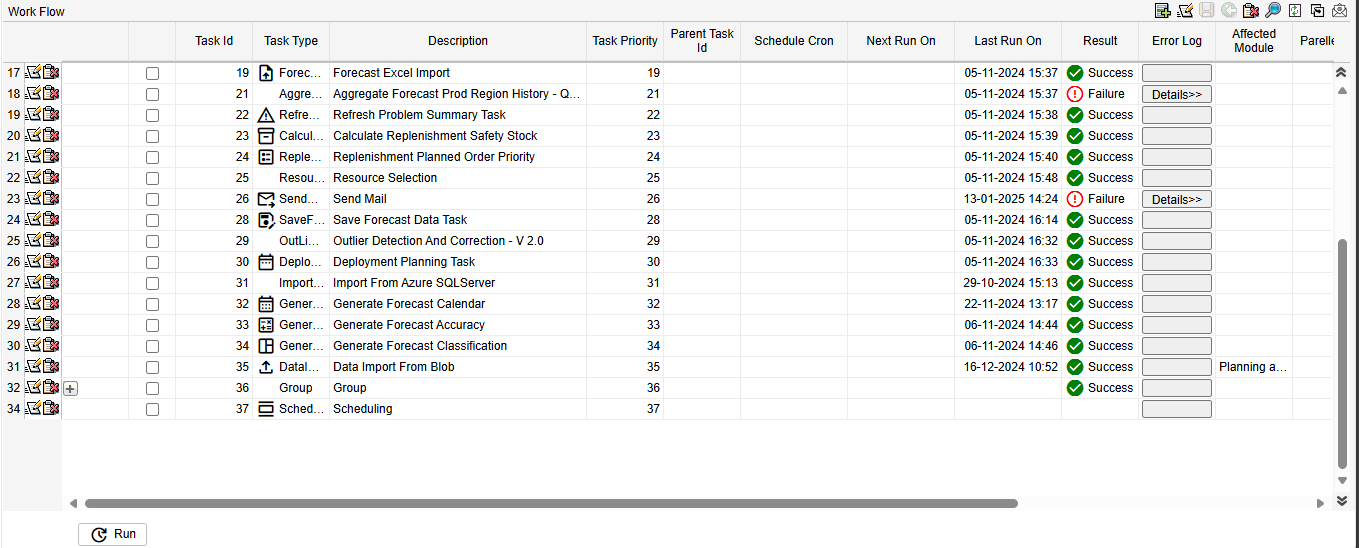
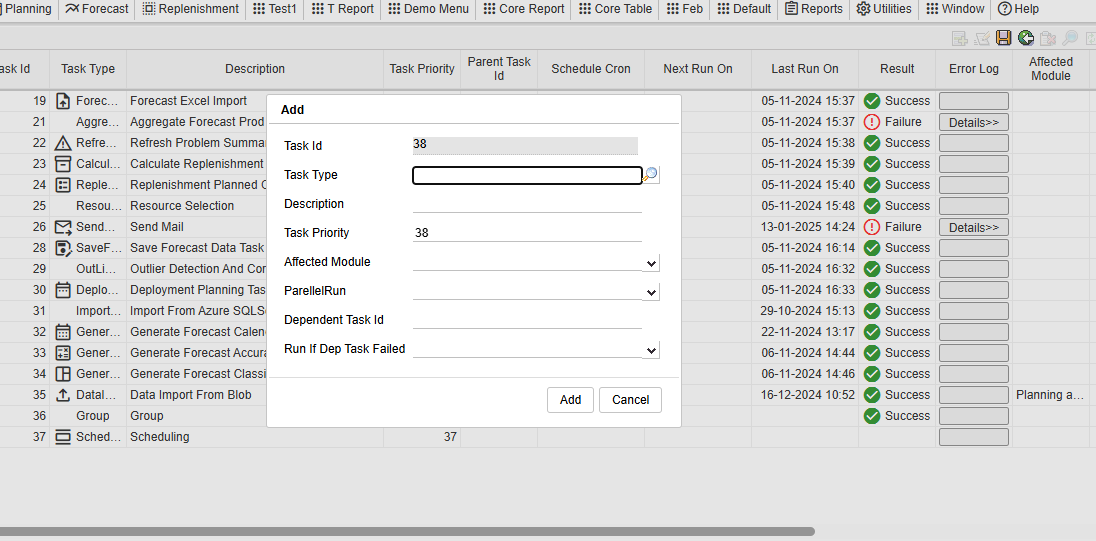
Click on Add Icon, Add popup will appear.
Click on Search Icon, WorkFlow Task Select window will appear.
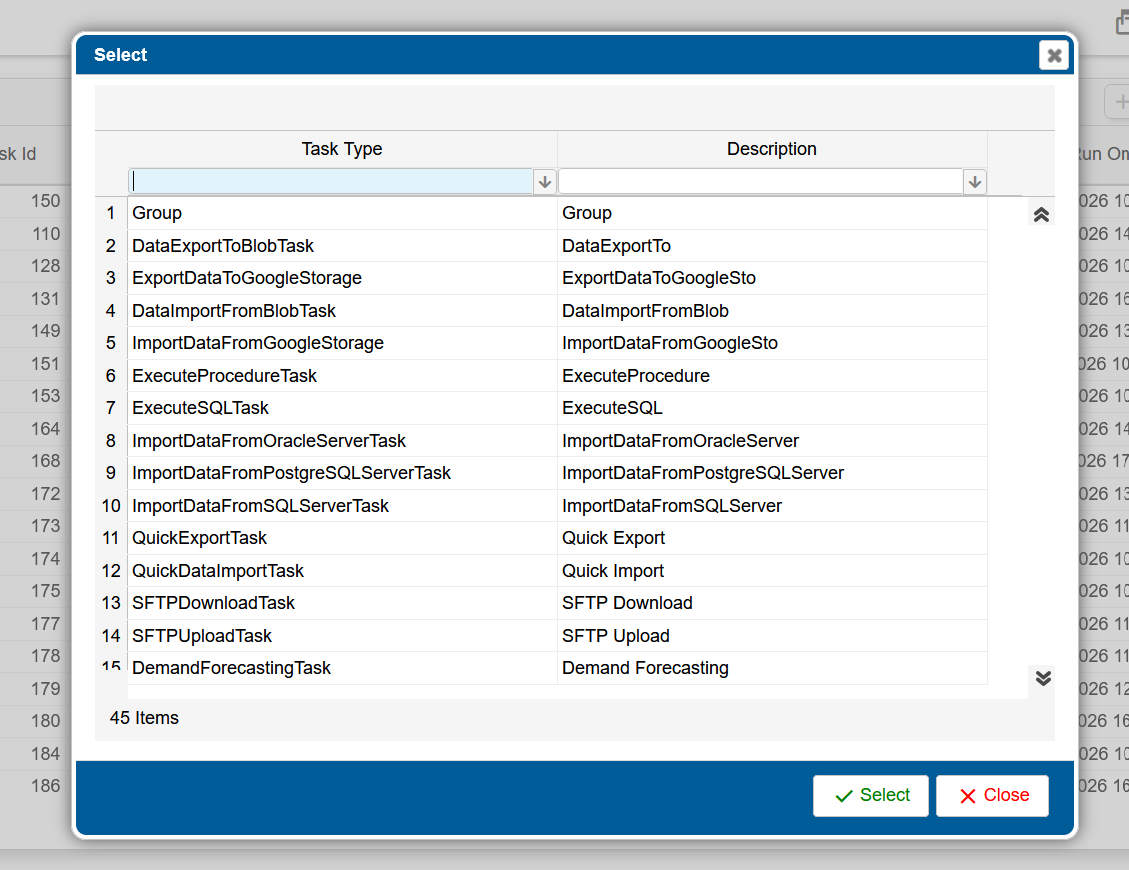
Select the required task and click on Select button and then enter the required fields (Description, Affected Module), and click the Add button.
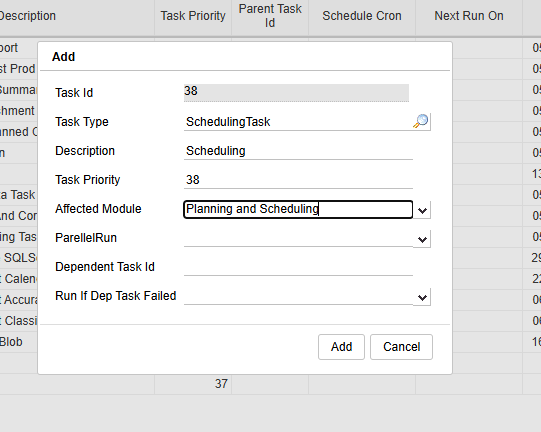
The selected Task added to the workflow screen.
How to Add Group Task and Child Task in Work Flow?
User can Add multiple Tasks(Child) under one Group Task.
Add Group Task
Click in Add icon and select the search icon to select the GroupTask.
Add Child Task
Step:1
Right click on group task and click on Add child option, add popup will appear, select the required task, and add to Group
Step:2
Right click on required task , select the add to group , task will added to group .
If run the group task , all tasks which tasks are inside that group will run.
How to Run the WorkFlow tasks Manually
Go to the Workflow screen, select the task by clicking the checkbox, and then click the Run button. The task will execute and display the result as either 'Success' or 'Failure'. If the task is showing as 'Pending', check the 'Task Manager and Scheduler' connection, and the 'Database' connection in System Admin.
How to Run the WorkFlow task Automatically
· User can Run the Task Automatically at scheduled time which can set in Schedule cron Parameters.
· Automated Tasks will be Run in WorkFlow Queue.
· Right click on the Task which has to be scheduled for Run and select details.
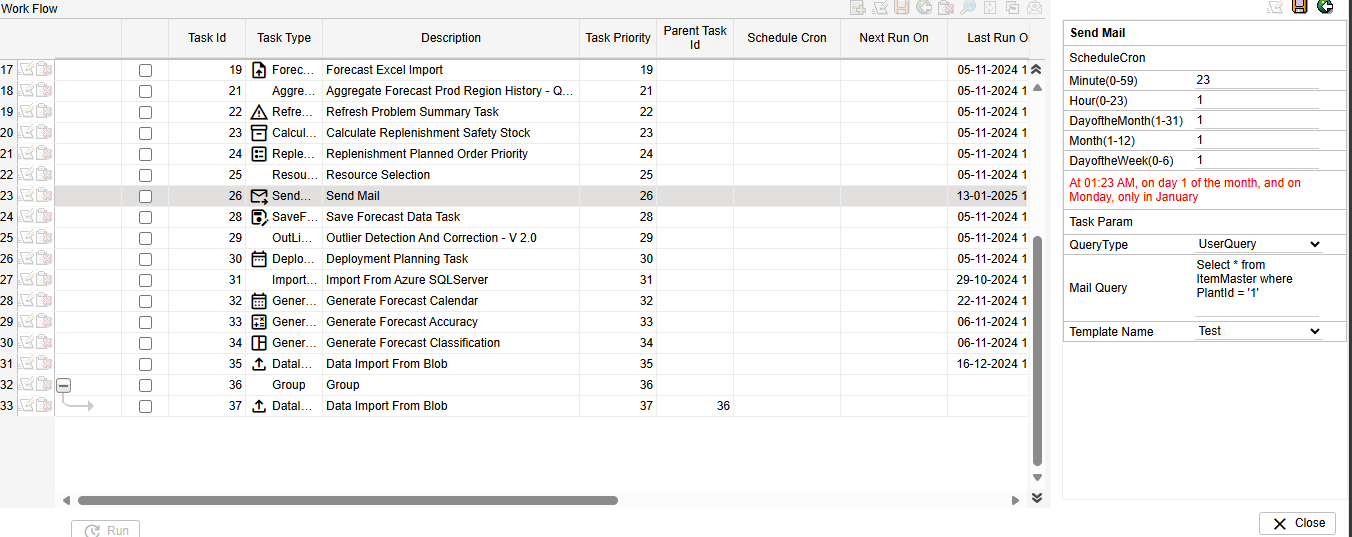
Click on Edit and enter the schedule time and save it , selected task will automatically run for sechuled Cron time.
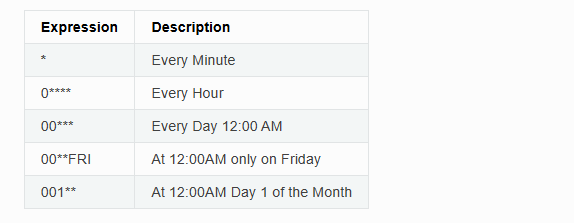
The cron expression is made of five fields. Each Field can have Following values

Based on the above, the scheduled task will run once every minute.
Example
For more details Refer this https://crontab.cronhub.io/
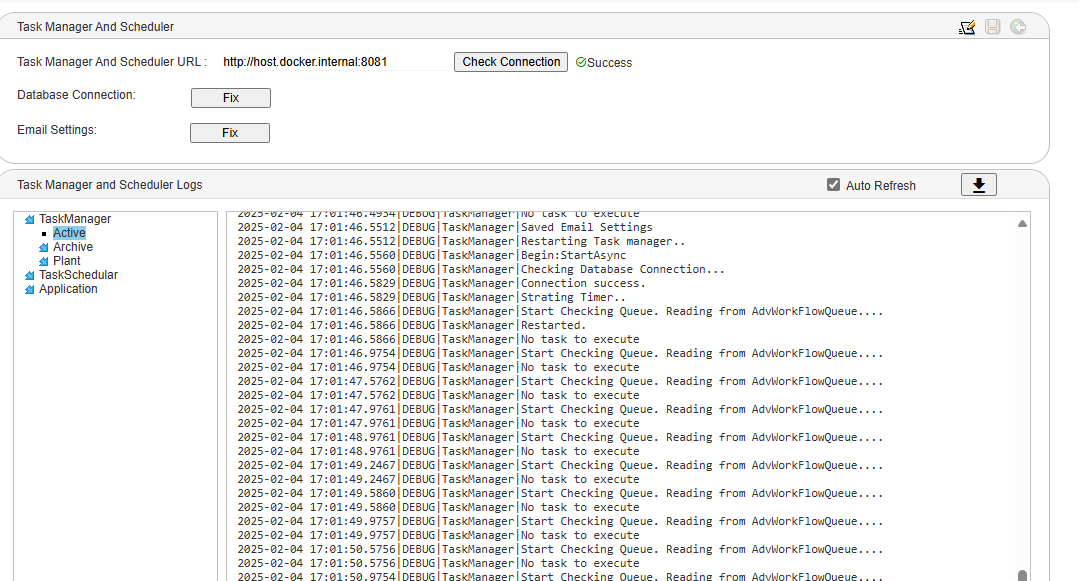
User can check when the Task is scheduled to Run under ‘Next Run On’ column and also user can check the Task Last Run details Under 'Last Run On' Column, also User can check the log in System Admin 'Task Manager and Task Scheduler'.
User can check the TaskManger and Scheduler connection in system admin screen.
WorkFlow Tasks
Quick Export Task
User can Export data quickly by Running this Task. User will be given option to Export Data to different formats like Text, Excel and CSV.
Quick Export Task Parameters
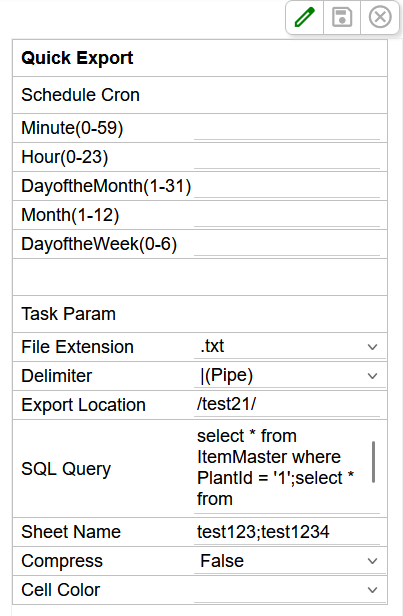
- For text, Excel, CSV, Dat and Json files, if a folder name is provided, it will be created inside the mounted path, and the specified file will be exported there based on the given SQL query while running the task.
- If Compress = True, the file will be exported in compressed format.
- If the sheet name is not specified (sheet name should be optional), then the file should be exported using the Table name.
SFTP Upload Task
- Uploads files to a remote server via SFTP.
- Transfers files securely to an SFTP server.
- Automates secure file upload using SFTP.
SFTP Upload Task Parameters
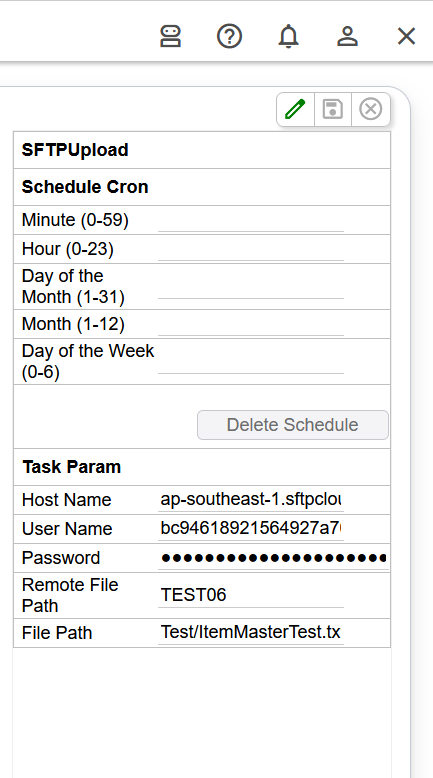
- Host Name: SFTP server address where the file will be uploaded.
- User Name: Username used to authenticate to the SFTP server.
- Password: Password for the SFTP user (masked for security).
- Remote File Path: Destination folder or file name on the SFTP server.
- File Path: Local file path of the file to be uploaded.
SFTP Download Task
- Downloads files securely from the configured SFTP server.
- Supports automated retrieval of files from remote directories.
- Ensures secure transfer using SFTP protocol.
SFTP Download Task Parameters
- Host Name: SFTP server address from which the file will be downloaded.
- User Name: Username used to authenticate with the SFTP server.
- Password: Password for the SFTP user (masked/secured).
- Remote File Path: Directory on the SFTP server where the source file is located.
- File Path: Local directory where the downloaded file will be saved.
- File Name: Name of the file to be downloaded from the SFTP server(comma separated).
- Save To Database: Indicates whether the downloaded file data should be stored in the database (True/False). If set to True, the data will be saved to the database; if set to False, the file will be downloaded and stored in the specified file path.
- Mapping Name: Defines the mapping between file columns and database table columns. Required when the table name does not match the file name.
- Insert Type has three dropdowns:
- Append: Adds to the database incrementally. If the particular data already exists, it will not replace that data. It will throw an error stating that data is already present.
- Replace: Adds to the database incrementally. If the particular data already exists, then it will replace that data.
- Clear All: Clears all the contents in that particular table and loads the data contained in flat file or excel.
Send Mail Task
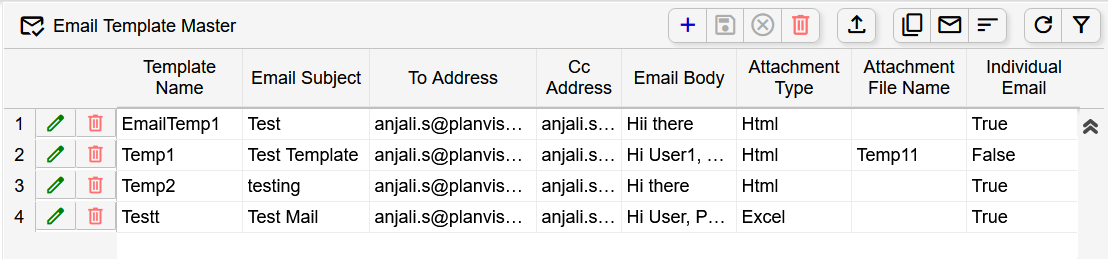
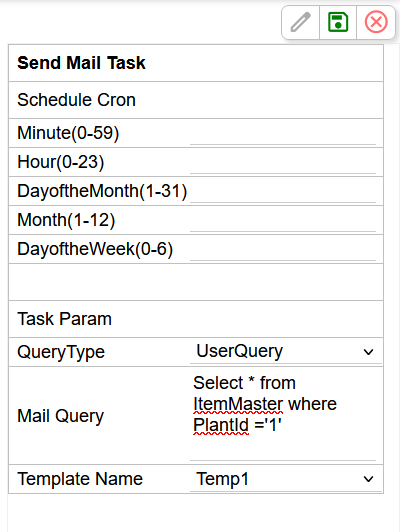
User can Send mail by Running this Task. Give Email template name and sql query to run the task successfully.
Send Mail Task Parameters
- In Utilities - Email Template
SAP RFC Import Task
SAPRFC Import Task is used to import data from SAP systems using RFC (Remote Function Call).
- Need to set the parameters in Utilities → SAP Import Params sreen
SAP RFC Configuration Keys
The following configuration keys must be added in the Configuration (PVConfig) table to enable SAP RFC integration. These parameters are used by the SAPRFCImport task to connect to the SAP system and retrieve data.
| Config Key | Description |
|---|---|
| SAP_RFC_ASHOST | Specifies the SAP Application Server host name or IP address where the SAP system is running. |
| SAP_RFC_CLIENT | The SAP Client number used to log in to the SAP system. Each client represents a separate logical environment. |
| SAP_RFC_LANG | The language code used for the SAP session (e.g., EN for English). |
| SAP_RFC_PASSWD | The password of the SAP user account used for RFC authentication. |
| SAP_RFC_Service_URL | The service API URL used by the application to communicate with the SAP RFC service. URL: http://localhost:9090/api/rfc |
| SAP_RFC_SYSNR | The SAP System Number that identifies the SAP instance on the application server. |
| SAP_RFC_USER | The SAP username used to authenticate and connect to the SAP system. |
SAP RFC Import Task Parameters
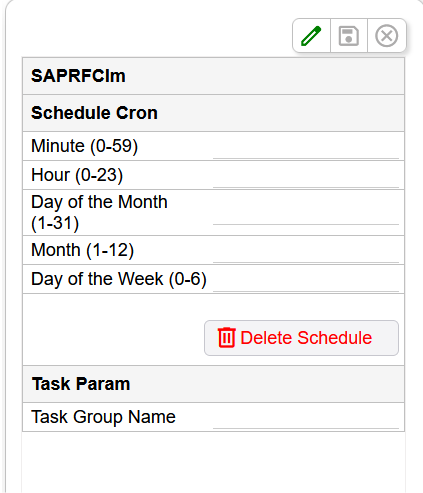
- Task Group Name : Task Group Name is used to specify the SAP import configuration group that the SAPRFCImport task should execute, defined in the Utilities → SAP Import Parameters screen.
SAP_HANA_Material_MasterImport
SAP_HANA_Material_MasterImport is a workflow task that imports Material Master data from an SAP S/4HANA system into the application's SAP_HANA_Material_Master database table.
Material Master contains the master data of products or materials used throughout the organization. It serves as reference data for various business processes such as procurement, inventory management, production planning, sales, and forecasting.
Unlike transactional data (such as sales orders or invoices), Material Master data is maintained centrally and changes infrequently.
Purpose
SAP_HANA_Material_MasterImport workflow performs the following operations:
- Connects to the SAP S/4HANA OData API.
- Retrieves Material Master records.
- Reads the required data from the API response.
- Maps the SAP fields to the application's database columns.
- Inserts or updates the records in the SAP_HANA_Material_Master table.
SAP_HANA_Material_MasterImport Workflow Parameters
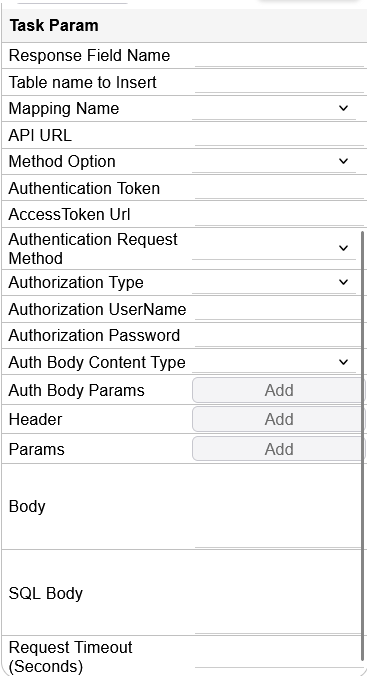
| Parameter | Description |
|---|---|
| Response Field Name | Specifies the JSON response node from which the workflow reads the Material Master data. |
| Table Name to Insert | Specifies the destination database table where the imported Material Master records are stored. |
| Mapping Name | Defines the mapping between the SAP API fields and the application's database columns. |
| API URL | Specifies the SAP S/4HANA OData API endpoint used to retrieve Material Master data. |
| Method Option | Specifies the HTTP method used to call the API, such as GET, POST, PUT, PATCH, or DELETE. For retrieving Material Master data, GET is typically used. |
| Authentication Token | Specifies the authentication/access token used to authorize the API request. |
| AccessToken Url | Specifies the URL of the authentication service used to obtain an access token before calling the SAP API. |
| Authentication Request Method | Specifies the HTTP method used to request the access token from the AccessToken Url, such as GET or POST. |
| Authorization Type | Specifies the authentication mechanism used to access the API, such as Basic, Bearer Token, OAuth 2.0, or other supported authorization types. |
| Authorization UserName | Specifies the username required for API authentication when the selected authorization type uses username-based authentication. |
| Authorization Password | Specifies the password associated with the authorization username when username/password authentication is required. |
| Auth Body Content Type | Specifies the content type or format of the request body sent to the authentication endpoint, such as application/json or application/x-www-form-urlencoded. |
| Auth Body Params | Specifies the parameters sent in the authentication request body when obtaining an access token, such as grant_type, client_id, and client_secret. |
| Header | Specifies the HTTP headers to be included in the API request, such as Authorization, Content-Type, Accept, or SAP-specific/custom headers. |
| Params | Specifies the query parameters sent with the API request. These can be used to filter or control the data returned by the SAP OData API, such as $filter, $select, $top, or other API-specific parameters. |
| Body | Specifies the request body sent to the API. This is generally used for HTTP methods such as POST, PUT, or PATCH when the API requires request data. |
| SQL Body | Specifies the SQL statement or SQL-based content used by the workflow when SQL processing is required as part of the task execution. |
| Request Timeout (Seconds) | Specifies the maximum time, in seconds, that the workflow waits for the API request to complete before the request is considered timed out. |
SAP_HANA_SalesHistoryImport
SAP_HANA_SalesHistoryImport is a workflow task that imports Sales History data from an SAP S/4HANA system into the application's SAP_HANA_SalesHistory database table.
Sales History contains the historical billing and sales transaction data of products sold to customers. This data is primarily used for demand forecasting, sales analysis, replenishment planning, reporting, and other business analytics.
Unlike Material Master data, Sales History is transactional data that is generated continuously as business transactions occur.
SAP_HANA_SalesHistoryImport workflow performs the following operations:
- Connects to the SAP S/4HANA OData API.
- Retrieves Sales History records.
- Reads the required data from the API response.
- Maps the SAP fields to the application's database columns.
- Inserts or updates the records in the SAP_HANA_SalesHistory table.
SAP_HANA_SalesHistoryImport Parameters
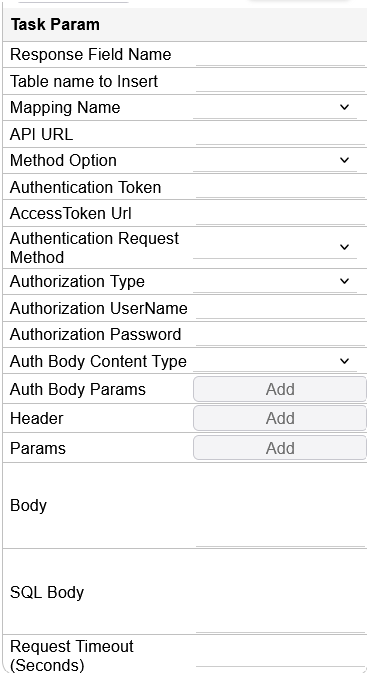
| Parameter | Description |
|---|---|
| Response Field Name | Specifies the JSON response node from which the workflow reads the API response data. |
| Table Name to Insert | Specifies the database table where the retrieved data is stored. |
| Mapping Name | Specifies the mapping between API response fields and database columns. |
| API URL | Specifies the API endpoint URL used for the request. |
| Method Option | Specifies the HTTP method used for the API request. |
| Authentication Token | Specifies the token used to authenticate the API request. |
| AccessToken Url | Specifies the URL used to obtain an access token. |
| Authentication Request Method | Specifies the HTTP method used to obtain the access token. |
| Authorization Type | Specifies the authorization mechanism used for the API request. |
| Authorization UserName | Specifies the username used for authorization. |
| Authorization Password | Specifies the password used for authorization. |
| Auth Body Content Type | Specifies the content type of the authentication request body. |
| Auth Body Params | Specifies the parameters included in the authentication request body. |
| Header | Specifies the HTTP headers included in the API request. |
| Params | Specifies the query parameters included in the API request. |
| Body | Specifies the request body sent to the API. |
| SQL Body | Specifies the SQL content used for SQL-based processing, when applicable. |
| Request Timeout (Seconds) | Specifies the maximum time allowed for the API request to complete. |
Planning Tasks
Update Production Shifts Task
- Updates production shift timings and calendars.
- Data should be there in the Location Calendar(Planning - Calendar - Location Calendar).
- ContinuousLocationCalendar table will be populated after running the task.
Infinite Capacity Plan Task
· Populates the WorkOrderPlan without considering capacity limits.
Finite Capacity Plan Task
- Populates the WorkOrderPlan without considering actual capacity limits.
Scheduling Task
- Converts the production plan into a detailed time-based schedule.
- Populates the WorkOrderOpResPlan table
AggregateForecastProdRegionHistoryTask_V2
- It will retrieve data from the tables ForecastSalesHistory, ForecastOutlierMaster and ForecastOutlierParameters.
- Populates the tables ForecastProdRegionOutliers, ForecastProdRegionSplitPer and ForecastAdjSalesHistory.
ForecastGenerationTask_V2
- It will retrieve data from the table ForecastAdjSalesHistory.
- Populates the table ForecastProdRegion and ForecastResult.
ForecastDisaggregationTask_V2
- It will retrieve data from the tables ForecastResult and ForecastProdRegionSplitPercentage.
- Populates the table ForecastStatisticalData.
Execute Procedure Task
- Execute Procedure Task is used to run a database stored procedure with parameters.
- This task allows you to:
- Call a stored procedure from the database
- Pass input values (Parameters) to it
Execute Procedure Task Parameters
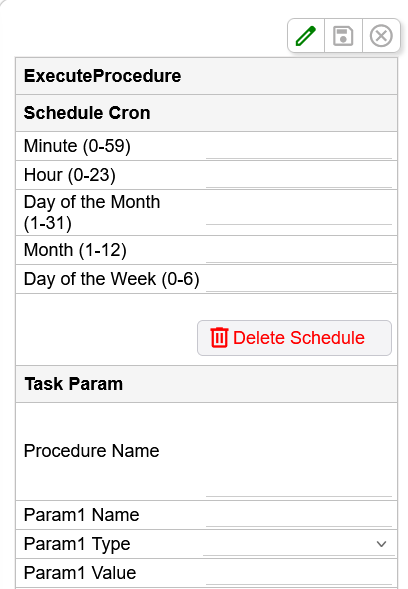
- Param1 / Param2 / Param3 - Each parameter section represents one input to the procedure.
- Procedure Name - The name of the stored procedure you want to execute.(Example: usp_CalculateForecast, sp_UpdateOrders)
- Param Name - Must match the parameter name in the stored procedure.(Example: PlantId)
- Param Type - Data type of the parameter.
- String (nvarchar)
- Integer
- Date
- Param Value - Value passed to the procedure when it runs.
Execute SQL Task
- Execute SQL Task allows you to directly run a SQL query on the database.
- SQL Query - SQL statement you want to execute.
Data Import Web API Task
- A web service that imports data from external systems into the application using API calls.
Data Import Web API Task Parameters
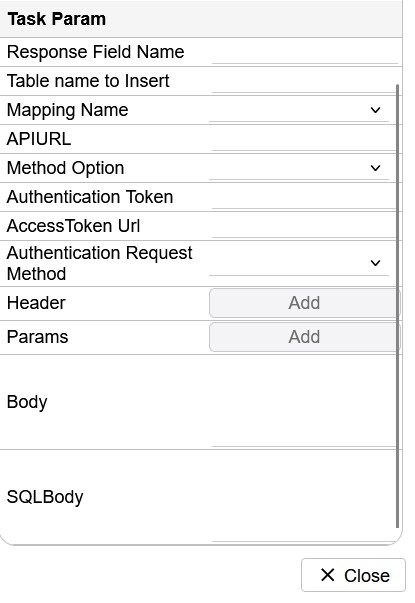
- Response Field Name - Specifies the field (key) in the API response from which the data should be extracted. If the API returns JSON, this is the JSON property containing the records to import.
- Table name to insert - The database table where the imported data will be inserted. The API data is mapped and stored in this table.
- Mapping Name - Workflow mapping name to be selected to map column names.
- API URL - The endpoint of the Web API from which data is fetched. This is the URL that the task calls.
- Method Option - The HTTP request method used to call the API. Common options are GET, POST, PUT, or DELETE. Data import usually uses GET (retrieve data) or POST (send request with filters).
- Authentication Token - Enter the token required to authenticate API requests.
- AccessToken URL - Specify the endpoint used to obtain the authentication access token.
- Authentication Request Method - Select the HTTP method (e.g., GET or POST) used to request the authentication token.
- Header - HTTP request headers sent along with the API request. These are commonly used for authentication or specifying the content type. SQL Statement also we can add in header to generate the header value dynamically.
- Params - Parameters sent along with the API request. These are commonly used for authentication or specifying the content type. SQL Statement also we can add in Paramters to generate the Paramter value dynamically.
- Body - The request payload sent to the API. Used mainly with POST or PUT requests to pass filters, parameters, or data in JSON format.
- SQL Body - A SQL query or SQL statement used to dynamically generate the request body or retrieve values before calling the API. It is typically used when the API request depends on data already present in the database.