Scenario
Scenario is a separate planning setup used to organize, test, or evaluate the result.
For example, a planner may create different scenarios to compare planning outcomes:
- Baseline: The original planning setup.
- High Demand: A scenario for increased customer demand.
- Low Demand: A scenario for reduced customer demand.
- Test: A scenario used for testing.
When creating a new scenario, a schema with the scenario name should be created for the tables associated with the specified module.
- The Module Name is retrieved from
ScenarioTableListMaster. - The list of tables is retrieved from
ScenarioTableList.
The tables related to scenario functionality:
1. ScenarioTableListMaster 2. ScenarioTableList 3. ScenarioMaster
1. ScenarioTableListMaster
ScenarioTableListMaster table appears to store the master configuration for modules that support scenario functionality.
This screen is available under File → Scenario Tables.

Column explanations
| Column name | Explanation |
|---|---|
| Scenario Module Name | Name of the module that supports scenarios, such as Forecast or Planning and Scheduling. |
| Description | Describes the module. |
| Last Update | Date and time when the record was last updated. |
| Last Updated User | User who last updated the record. |
2. ScenarioTableList
ScenarioTableList stores the list of database tables associated with each scenario module.
It defines which tables should be included when creating a new scenario based on the selected module.
This screen is available under File → Scenario Tables. Then, right-click the Scenario Module Name column in ScenarioTableListMaster and select Scenario Tables from the context menu. The Scenario Table List subgrid will then appear.
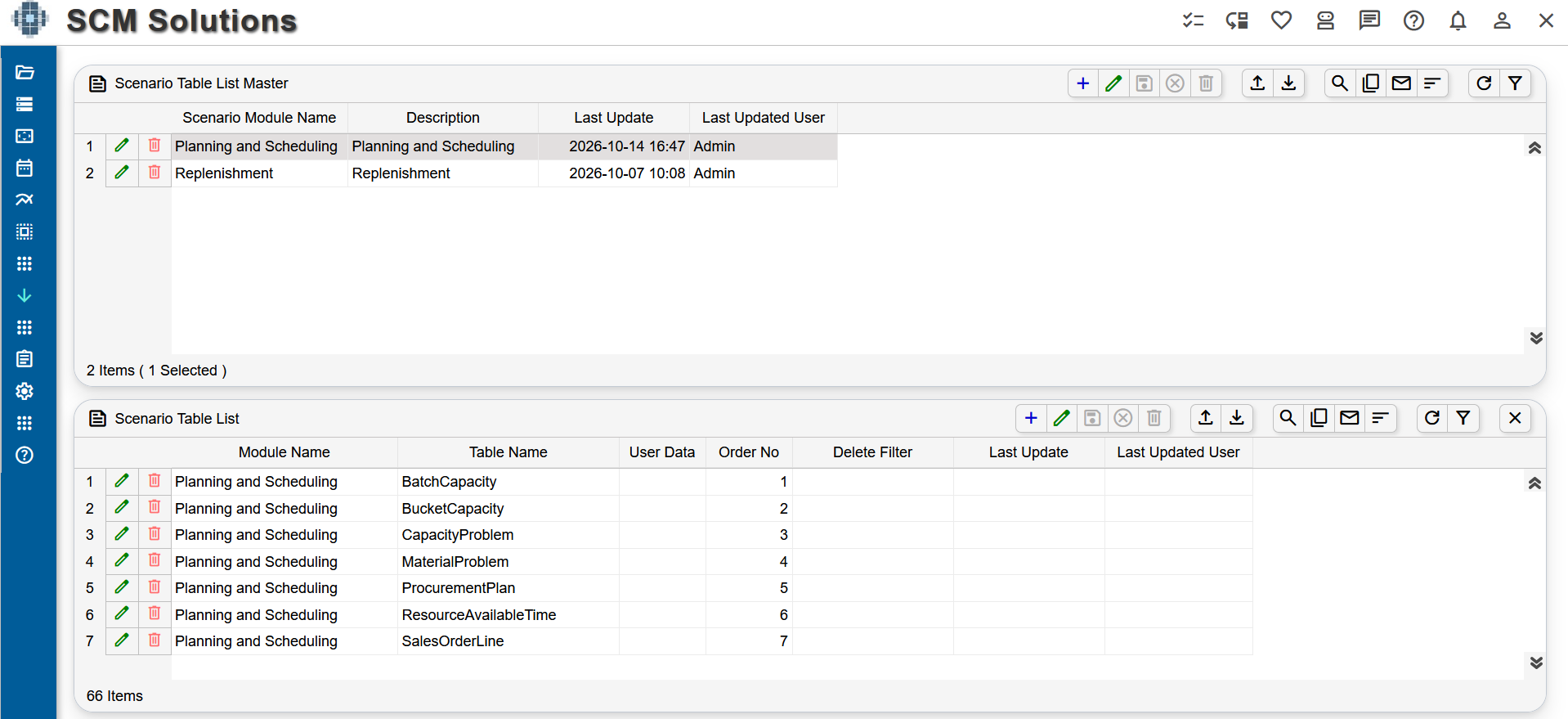
Column explanations
| Column name | Explanation |
|---|---|
| Module Name | Name of the module associated with the database table. |
| Table Name | Name of the database table associated with the module. |
| User Data | Appears to relate to user-specific data or its configuration. The exact meaning needs verification. |
| Order No | Specifies the display or processing order of the tables in the scenario table list. |
| Delete Filter | May contain a filter condition used to identify records for deletion during an operation. |
| Last Update | Date and time when the record was last updated, if maintained. |
| Last Updated User | User who last updated the record, if maintained. |
3. ScenarioMaster
ScenarioMaster table appears to store the main details of individual scenarios created in the application.
It contains information such as the scenario ID, name, status, users, module and possible parent scenario.
This screen is available under File → Scenario Master.
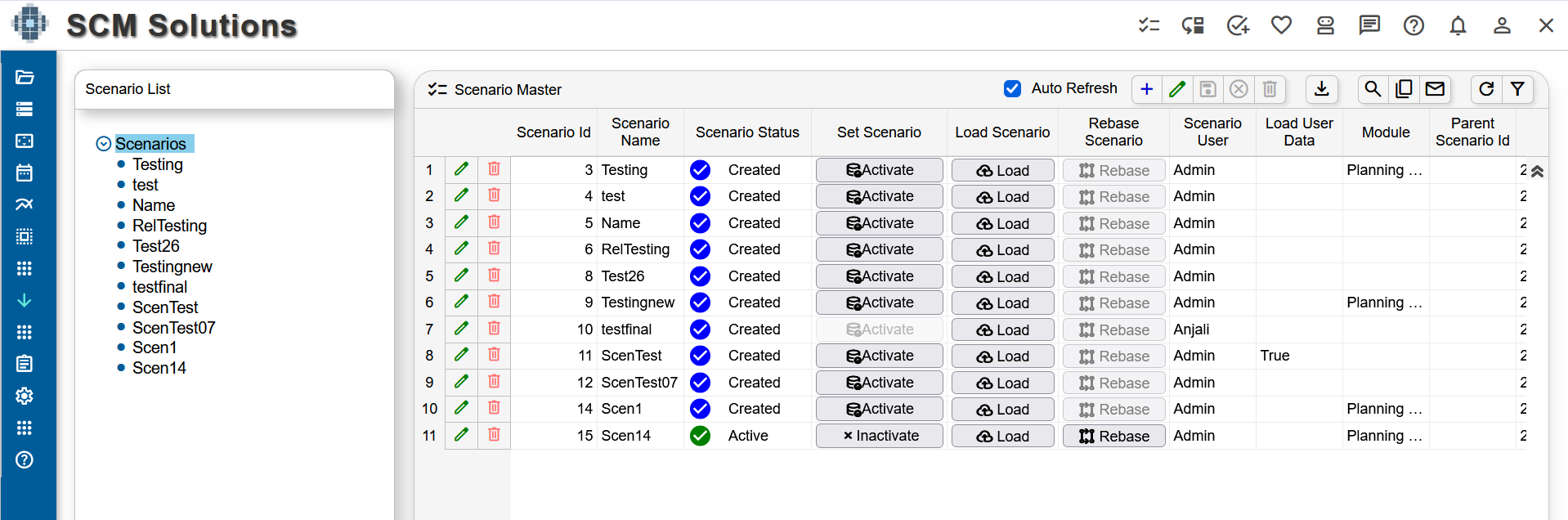
Column explanations
| Column name | Explanation |
|---|---|
| Scenario Id | Identifier used to distinguish one scenario from another. |
| Scenario Name | Name assigned to the scenario. |
| Scenario Status | Appears to represent the scenario's current state or status. Your screenshot shows Created. |
| Set Scenario | Sets the selected scenario as the active scenario for the specified module. |
| Load Scenario | Loads the selected scenario's data into the base schema (dbo). |
| Rebase | Updates the selected scenario with the latest changes from the base scenario (parent scenario). |
| Scenario User | User associated with the scenario, possibly its owner or assigned user. |
| Module | Module associated with the scenario, if populated. |
| Last Update | Date and time when the scenario was last updated. |
| Last Updated User | User who last updated the scenario. |
| Parent Scenario Id | May identify the parent scenario if a parent-child relationship exists. |
1. Activate Scenario
Makes the selected scenario active for the specified module. Once a scenario is activated, workflow tasks associated with that module will use the activated scenario's tables to store their results.
2. Load Scenario
Loads the selected scenario's data into the base schema (dbo). This allows the scenario data to be transferred to the base schema for use in the main planning environment.
3. Rebase Scenario
Updates the selected scenario with the latest changes from its base scenario (parent scenario). This helps synchronize the scenario with the latest data from the parent while retaining the scenario's purpose of supporting separate planning activities.
Notes and Conditions
-
Workflow Task Results: The results of workflow tasks will be saved to the tables belonging to the currently activated scenario for the specified module.
-
Rebase Button: The Rebase button will be enabled only for the activated scenario. Users can rebase the active scenario to incorporate the latest changes from its parent scenario.
-
Activate and Rebase: For the logged-in user, the Activate and Rebase buttons should be enabled only for scenarios created by that user. Scenarios created by other users should not allow these actions for the logged-in user.
-
Load Button: The Load button should be enabled only when the logged-in user has the ScenarioAdmin permission configured in Role Info. Users without this permission should not be able to load scenario data into the base schema.